Installation
1. Requirements
- Blender version 4.4, 5.0, and above are supported
- I skip release the version for Blender 4.5 due to Blender 4.5 has internal bugs
- Supports macOS, Windows, Linux
- It will requires optex for rendering formulas (optional)
- Make sure
optexcommand is available in your system PATH - If you can run
optexfrom a terminal, you're good to go.
- Make sure
2. Installing the Add-on
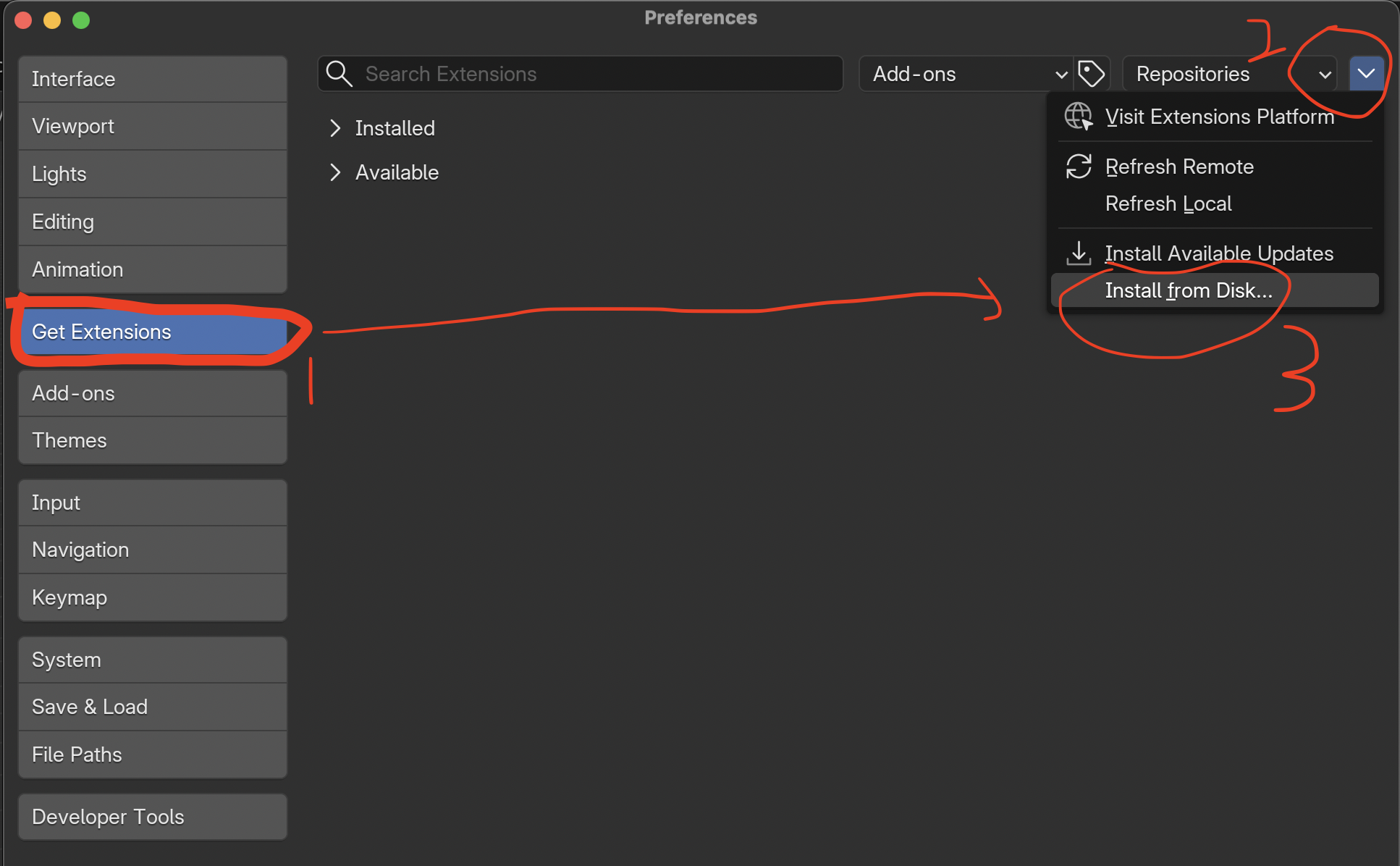
- Open Blender → Edit → Preferences → Get-Extentions
- Choose Install from Diks...
- Select the ZIP file and click the Install from Disk button
- By default, it should be enabled, double check to make sure it's enabled, if not, just enable it
3. Setting Up the Add-on
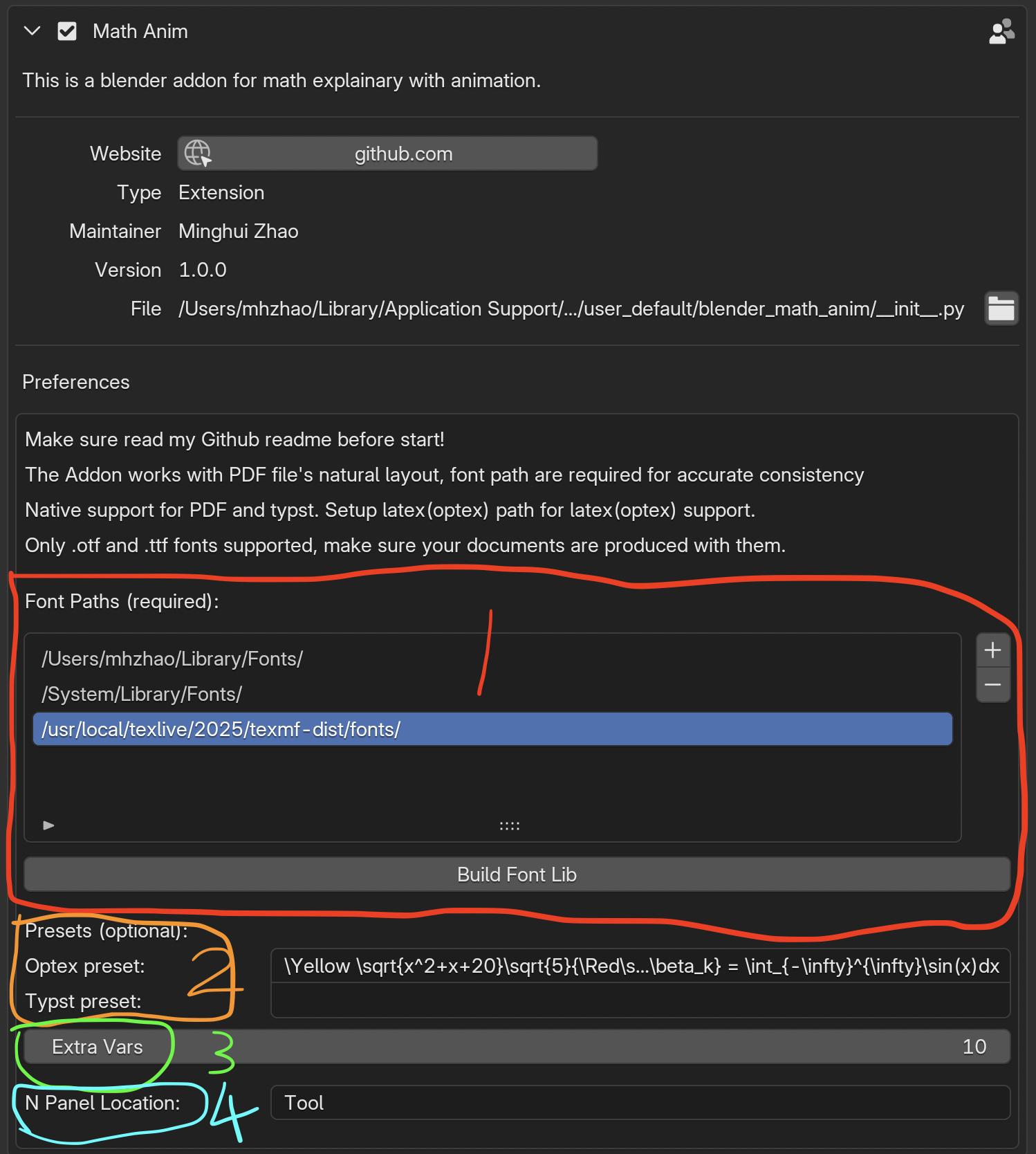
Click Add-ons then search Math Anim, expand it.
- The fonts path libraries are necessary unless you don't use the formula part
- Only
.ttfand.otffonts are supported, if your PDF files are compiled with other font types, like latex with.pfbfonts (they are so outdated), it will use Blender default font instead. - All the needed python packages are bundled with the add-on except the
OpTexwhich doesn't have a python package. - OpTeX is just an latex engine (like lualatex,
xelatex), it only supports modern
.ttfand.otffonts, it's optianl. - You can use Typst which is also an modern typesetting engine by only
supporting
.ttfand.otffonts and theTypstis bundled with this add-on. - If you installed
OpTex, make sure it's in your system PATH:- It is in the PATH if you can run
optexfrom a terminal, for Windows, MacOS, and Linux. - For both
TypstandOpTex, check their documentations for their free available fonts to use.
- It is in the PATH if you can run
- Only
- You can also preset formulas for both
TypstandOpTexfor reference or speed up your workflow. Once they're set, they will be showed up in the add-on panel under formula section, otherwise, they will not show up. - The
Extra Varsare extra reserved variables for function plotting besides x,y,z,u,v,t etc, so if you set the number to 10, you will have x0, x1, ..., x9 as extra variables to use, similarly for y,z,u,v,t etc. - You can also change the add-on N panel location, but it is recommended to keep it under the default Tool location.